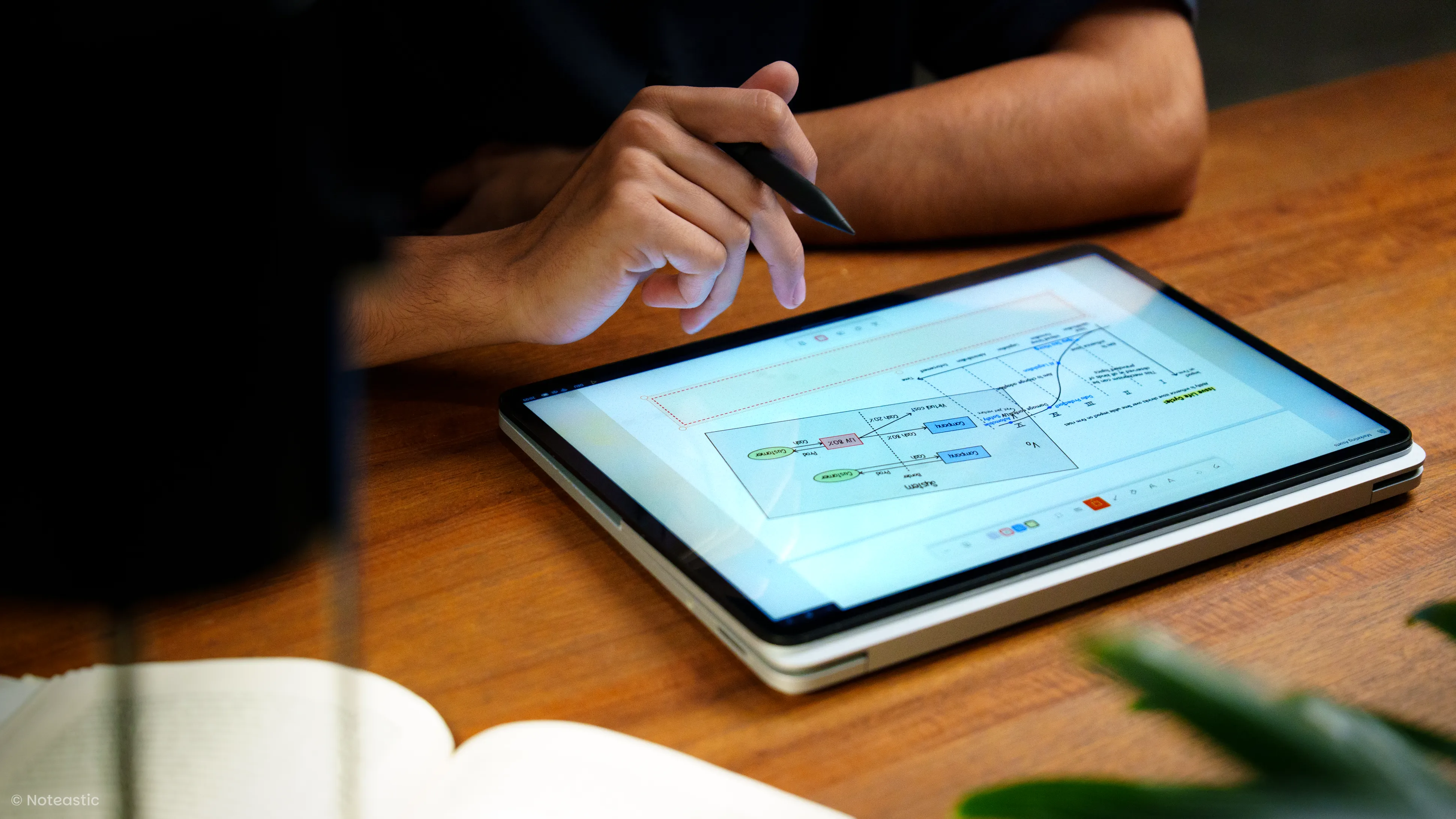
How to Take Handwritten Notes on Windows — The Complete 2026 Guide
Let's take a look at everything that is important when it comes to handwritten notes on Windows - psychology, hardware and apps
Introduction
Digital handwriting on Windows is often a story of high expectations meeting technical friction. You buy a €1.500 2-in-1 laptop or a professional-grade Wacom tablet, expecting the fluidity of pen and paper, only to be met with input lag and cluttered interfaces that get in your way.
The reality is that achieving a “perfect” handwriting setup on Windows isn’t just about choosing the right app; it is a multifaceted decision involving hardware, software, and personal workflow philosophy. If you are an Engineering student drawing complex parabolas, your needs are fundamentally different from a corporate manager trying to stay ahead of meeting notes and strategic decisions.
The goal of this guide is to decode these variables. Having worked with digital ink for years and having created my own successful note-taking application, I am happy to share my analysis on how you can achieve an amazing setup for handwritten note-taking on Windows yourself. I am sure this guide will help you evaluate available hardware better and choose software more decisively. In the following sections, we will break down:
- Handwritten Notes and Your Brain: Why digital handwritten notes are superior to typed notes.
- Technical Advantages of Digital Handwriting: How the merging of technology with pen and paper enables a new and better way of note-taking.
- Use Cases for Handwritten Notes: What tasks harness the advantages of digital handwritten note-taking.
- Hardware Options: How your input device shapes your note-taking experience.
- Choosing the Right Note-Taking App: The kingmaker of handwritten note-taking on Windows.
By the end of this guide, you won’t just have a list of apps—you will have the decision framework required to choose the right tools for your specific academic or professional goals.
Handwritten Notes and Your Brain
It’s easy to assume that typing is superior to handwritten notes because it’s faster, but research reveals a fascinating Efficiency-Retention Paradox. While a keyboard allows for near-verbatim transcription, it often leads to mindless processing, where information bypasses your brain’s critical filters. Handwriting, by contrast, creates a desirable difficulty. 1
Because you cannot write as fast as someone speaks or as you think, your brain is forced to engage in generative processing—the act of summarizing, paraphrasing, and conceptually mapping information on the fly 2. This cognitive bottleneck acts as a filter that ensures you aren’t just recording information but actually encoding it into your long-term memory 3.
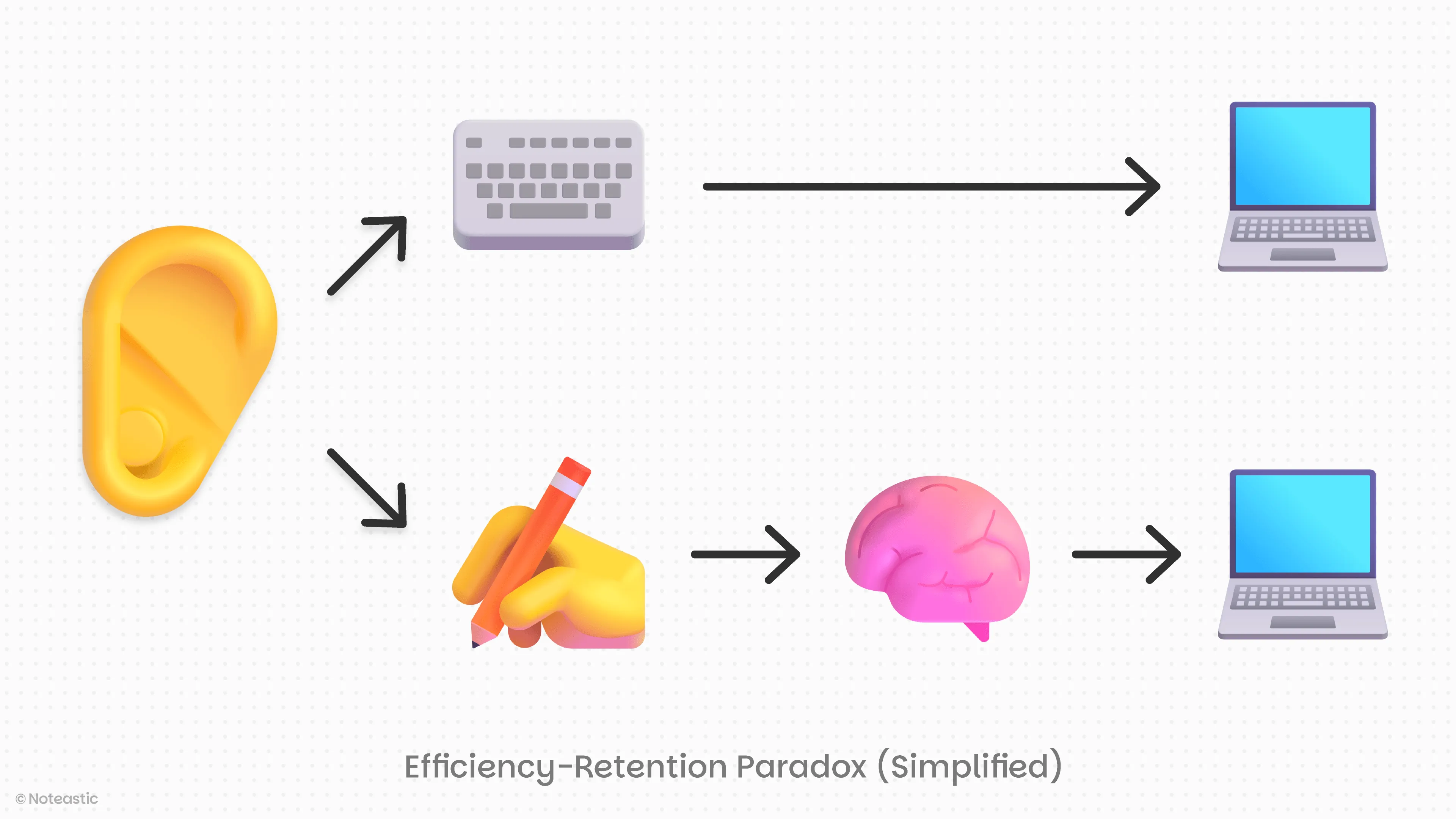
Beyond just “thinking harder”, handwriting triggers a unique neurobiological symphony. Every letter you ink creates a distinct motor engram (a memory trace), engaging the motor homunculus—the massive portion of your brain dedicated to hand movement—and stimulating the Reticular Activating System (RAS) to keep you alert 4. High-density EEG studies show that the act of writing induces synchronized Theta waves, the neural signature for deep memory encoding, which are largely absent during repetitive, homogenized taps when typing on a keyboard 5.
So keep in mind, picking up a stylus isn’t just a nod to tradition; it’s a scientifically backed method to prime your brain for high-level problem-solving and long-term knowledge retention.
Technical Advantages of Digital Handwriting
The rise of the personal computer and its predominant input method - the keyboard - led us to think that our thoughts must consist of typed letters, words, and paragraphs when digitalized. However, digital handwriting restores the freedom often associated strictly with pen and paper. You regain full authority over the structure, composition, and the very elements you use for your notes. But do not confuse digital handwriting with being equal to pen and paper, as the digital realm offers undeniable improvements over its physical counterpart. These are the most influential advancements:
Editing
This is a crucial part of note-taking. Notes are seldom final, as the thoughts they are intended to depict are evolving. This makes editing of what has been written before necessary. Be it right out, deleting sections of text, changing the color of it, or completely rearranging your entire note-taking page. All these tasks are crucial to ensuring your notes accurately depict the thought structure in your mind.
And with digital notes, this is possible! You can easily rearrange the text you’ve already written, adjust colors to your preference, and change the size of all elements as you wish.
Accurate Shapes and Symbols
Handwritten text often needs to be supplemented with symbols or shapes in order to illustrate concepts or relations between elements more concisely. In your mind, you have a clear vision of how a certain symbol, like a mathematical sum sign ( ∑ ) or a rectangle with straight lines and 90° angles, should look. But in order to draw them accurately with pen and paper, you would need to take out a ruler. In the world of digital note-taking, this is no longer the case. You can add these elements in the blink of an eye, and they look better than you could have ever drawn them by hand.
The ability to draw “perfect” shapes and symbols helps you to create the exact vision of your notes quicker than ever before, saving you time and energy.
Archiving
Why care about your notes when the piece of paper they are written on is subject to being lost in the middle of hundreds of other notes and vulnerable to physical damage by water, coffee ;) or fire? Finding specific parts of your notes on paper is also tedious. At times, you come back to your notes to look for a specific section you wrote down a long time ago on a matter you haven’t visited in years. Mostly, you either don’t find the information you need or it takes substantial amounts of time and energy to do so. All these flaws are solved by switching the canvas of your notes from a physical one to a digital one.
Archiving is easier because you can quickly give your notebooks names and arbitrarily rearrange them within folders you can create and delete in seconds. You can easily circumvent losing your notes by creating distributed backups on hard drives or in the cloud. And finding the specific piece of information you need has become an everyday task with technical advancements like OCR and AI Text Recognition.
To summarize, editing, accurate depiction, and archiving are core parts of note-taking, but are impossible or labour-intensive with physical paper. Digital handwritten note-taking allows you to precisely lay out and compose your thoughts and let your notes evolve together with your thinking. All while being accessible with a single click of a button.
Use Cases for Digital Handwritten Notes
Generally, this is a broad topic. You could utilize digital handwritten notes for almost everything if you wanted to. But for which tasks does this specific way of note-taking work best?
A task is best achieved through digital handwritten note-taking when it is non-linear, involves complex relations between information, and is sought to be archived and accessible.
There are tasks that fit this description exceptionally well. And the people engaging in these tasks are present everywhere, from primary schools to corporate headquarters. Here are a few examples:
Learning and Studying
This is a no-brainer. To study and to learn is quite the opposite of linear and is defined by the novelty and complexity of information you need to digest. Additionally, what you learn can be forgotten, so saving your mental ‘checkpoints’ in an easily accessible place will make your future self thank you.
Strategic Thinking
The very core of strategic thinking is ‘connecting the dots’ in complex systems. And not only keeping the result of a strategic challenge, but also knowing how the solution was put together is an invaluable asset you should want to keep. Arguably, there are problems that can’t be solved on a two-dimensional canvas anymore. But if you are confronted with these, I would rather suggest reading a book about complexity theory and getting your math skills back up and running.
Journaling
I don’t want you to disregard the power of journaling. It is a valuable tool for self-reflection, psycho regulation, and self-improvement. It is crucial to be done through handwriting, because it forces you to digest and condense the thoughts from your head and project them onto a canvas. This works wonders and should be well archived and continuously re-done.
Meeting Notes
There are meetings where you definitely do not need notes. But the best meetings are those where you are flooded with novel ideas, solutions to straining problems, or out-of-the-box innovations. This kind of information needs to be initially written down and then revisited and refined to reveal its true value.
Brainstorming
Nothing meets the above description better than brainstorming! A firework of thoughts and ideas that are written down only to be sorted and rearranged later is an ideal task for handwritten note-taking on a digital canvas. Also, brainstorming sessions often contain ideas that are not applicable to the present, but are worth saving for the future.
Knowledge Base Building
Combine notes for tasks like the above, put them into a well-sorted, topically organized digital library, and suddenly, many single notes become an invaluable whole. You created your own knowledge base, where you find everything written down that once was, or still is, important to you. This is already powerful if treated like a personal dictionary or lexicon, but who knows what AI assistants may one day be able to make of this pile of highly personalized structured data?
Hardware Options
Now that we know why we should take handwritten notes and what tasks they serve, the next question can be answered. What physical surface are we actually going to write on, and what stylus (a fancy word for digital pen) are we holding in our hands?
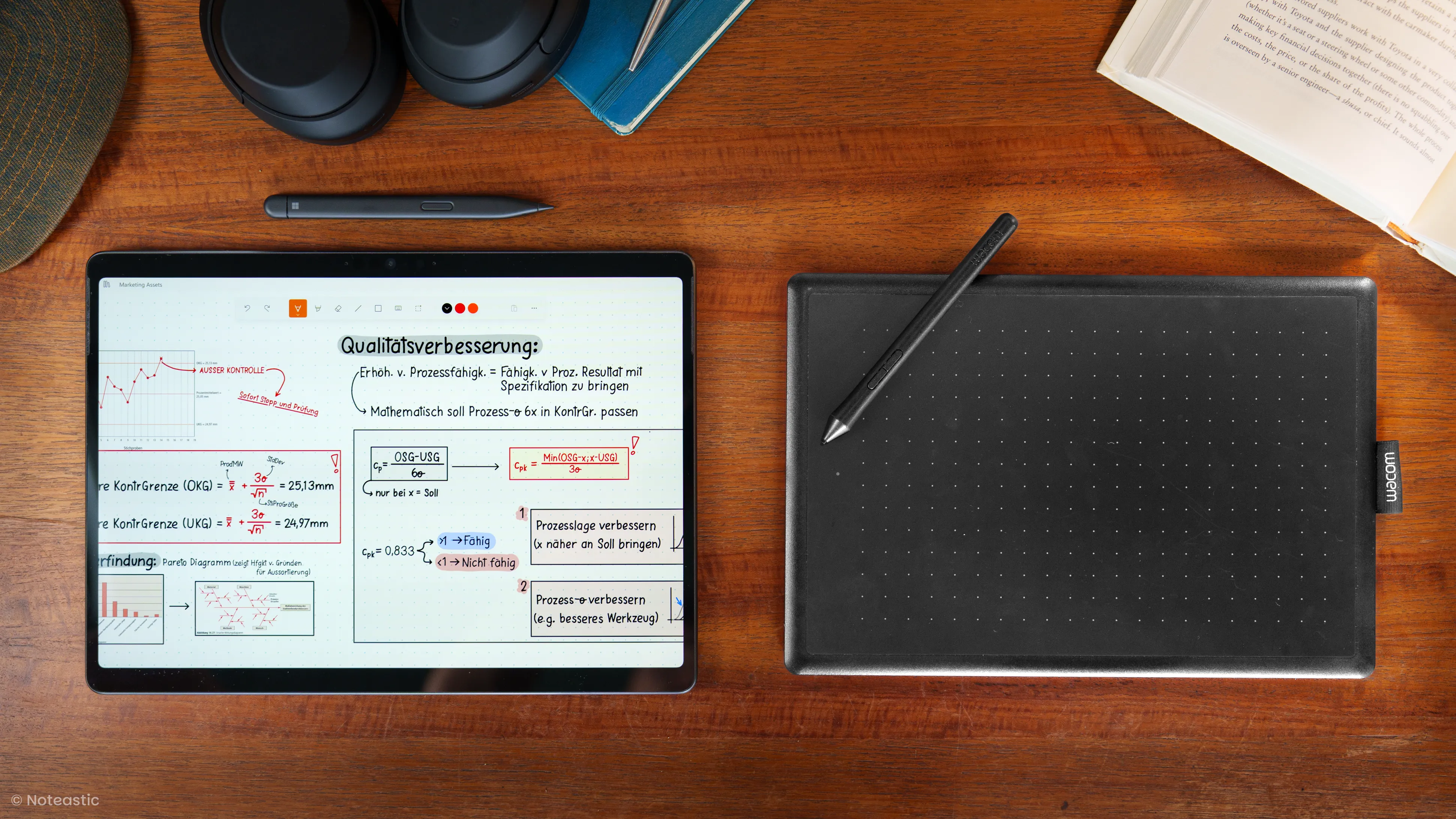
2-in-1 Laptop vs External Drawing Pad
There are two ways of getting your pen strokes projected onto a digital canvas. Either you work with a Microsoft Pen Protocol (MPP) equipped touchscreen and stylus, or you draw on an external drawing pad connected to your PC or laptop. Let’s take a look at those competing options, as both come with unique advantages and disadvantages that are worth considering.
2-in-1 Laptops
Also known as Convertibles, 2-in-1 laptops feature a touchscreen and, often, a hinge mechanism that folds the keyboard away. When talking about handwritten note-taking, the most important part of a convertible laptop is the touchscreen. And the quality differs widely. Being in the middle of a stressful lecture, fully focused on taking your notes and suddenly having your touchscreen recognize your palm as touch input or a simple tap, like a zoom gesture, will rightfully drive you mad.
Touchscreen
Speaking about palm rejection: modern laptops solve this problem by using the Microsoft Pen Protocol (MPP). It dictates the way your laptop and stylus communicate, but we will get to the stylus in a second. When looking for 2-in-1 devices, simply look for support of MPP 2.0 or higher. The touch interaction itself is another crucial topic. When equipped with the right software, you will find yourself moving around, selecting, scaling, and zooming all by using simple touch gestures. A precise and high-quality touchscreen is therefore necessary for both pen and touch interaction.
I cannot give you a thorough comparison of touchscreens across different laptop models and manufacturers, but I can tell you that the Microsoft Surface lineup features the best touchscreens I’ve ever had the chance to try. Working on devices like Surface Pro and Surface Laptop Studio is fantastic.
Stylus
Let’s take a look at the stylus. Firstly, there is a difference between an active stylus and a passive stylus. Active styluses have built-in electronic components that send information to the laptop. That includes pressure levels, tilt angles, precise location on or hovering over the screen, as well as shortcut button signals (all this is what MPP enables).
A passive stylus has no electrical components and is simply a rubber tip that is interpreted by the screen as a finger touch. Passive styluses are insufficient for note-taking. You will want to write precisely, use shortcut buttons to write more quickly, and enjoy pressure-sensitive writing, for which you need an active stylus.
Unfortunately, I am also unable to make an educated comparison between manufacturers and models of active styluses, but again, I can tell you that I happily worked with Microsoft products for years. As long as the stylus supports MPP 2.0, the choice is up to your personal preferences.
To conclude, it is complicated. No review will save you from going to a tech store and simply trying the touch and feel of different devices by yourself. Only keep in mind that MPP 2.0 is the bare minimum.
External Drawing Pad
External drawing pads from companies like Wacom® and Huion® allow you to plug in or remotely connect a tablet that can then take input from a proprietary stylus. This solution is amazing, especially if you simply want to upgrade your desktop PC setup, but it may be tedious if you want to take notes on the go. An important variable in external tablets for handwritten note-taking is whether you have a built-in screen or just a surface that captures your stylus and projects it onto your normal screen.
Built-in Display
Personally, I think that the note-taking experience is significantly better when you see the ink appearing at the tip of your pen. The coordination between eyes and hand is much easier when you can place the pen on the screen you are drawing on instead of doing swirls in your peripheral field of vision while staring at a screen in front of you.
Touch-Support
Regarding touch support, some models do have a touchscreen; however, the latency and ‘snappiness’ are far behind those of laptop touchscreens. This will annoy you because things on the screen don’t happen as fast as you’d like. And it can get fatiguing, especially if we are talking about hour-long study sessions or hectic meetings.
Shortcuts and Texture
But just as most active styluses for touchscreens, the styluses for drawing tablets also often come with dedicated shortcut buttons. Some drawing pads even feature programmable buttons built into the pad itself, which is an efficiency multiplier. Another topic to consider is the surface texture you are drawing on. Drawing pads usually have rougher textures, which is pleasant. The friction gives a natural haptic feedback that simply feels more like paper than gliding over glass.
So, what is better?
In essence, both 2-in-1 laptops and external drawing pads have their unique advantages. In both cases, it is generally far more pleasant to look at the screen you are drawing on. Drawing tablets make for a good upgrade to an existing setup, have a textured drawing area, and often feature integrated shortcut buttons. However, they are a whole standalone device that needs to be carried around. 2-in-1 laptops are efficient because, as the name suggests, they are an all-in-one solution. You can type an essay or write an email, and moments later be ready to take handwritten notes with a stylus in your hand - wherever you are. This flexibility creates an amazing workflow. However, the touchscreen quality of a convertible laptop can easily make or break the handwriting experience.
What it really boils down to is the touch interaction with the device. And this is why I would ultimately suggest a 2-in-1 laptop over an external drawing pad. Quick touch interactions are crucial in stressful note-taking environments like a lecture hall or a corporate meeting, and make the entire device feel like more than just a drawing surface. The screen you have in front of you becomes a visible extension of your mind, because you can realize every idea of notes you have instantly and without latency. This is what you should expect from your device. To flow with you.
Choosing the Right Note-Taking App
Now we are at the most critical part of our journey. It decides whether the thoughts you put into your hardware actually translate into a positive note-taking experience. The application you use has a lot of power over your workflow and note-taking abilities. If it lacks features, it restricts you. If it’s chaotically designed, it inhibits your focus. If it is slow, you will feel uneasy and be held back from the task you want to accomplish. In a sense, the application you are using for your handwritten notes is either your best friend or your biggest enemy. So what factors determine which side of the spectrum an app will turn out to be for you?
The Basics
First and foremost, before we start thinking about anything like cloud synchronization or AI Notes analysis, the app MUST provide you with a low-latency, no-lag inking experience. Drawing a line should feel smooth, natural, and flowy. It is the most basic input in a handwritten note-taking application and must be handled without compromise.
Software Architecture
Ideally, the app you are using is a native Windows application. This means that the app was specifically developed for the Windows operating system and leverages the full power of your device. The undesirable counterpart to that is a so-called web wrapper. It is basically a browser application that is made to look like a normal application. Web apps use immense amounts of RAM (=less battery life), have trouble with offline note availability, and generally feel very unsmooth. Using a web wrapper instead of a native Windows application is like using a paddle boat instead of a sports car. There are applications specifically made for Windows, and you should leverage them.
To illustrate the difference between a web wrapper and a Windows-native application, you can try opening Goodnotes (best web wrapper) and Noteastic (native Windows app) next to each other and play around a bit. You will see what I mean.
But now let’s take a look at the tools your chosen handwritten note-taking application should offer you!
Inking Tools
The most basic aspect to watch out for is the selection of inking tools the app offers. Even though this is inseparably connected to your unique way of taking notes, I still think there are a few minimum requirements in order to harness the digital canvas effectively. You should be able to check off and test this list of tools: pen, highlighter, eraser, lines & arrows, shapes, lasso.
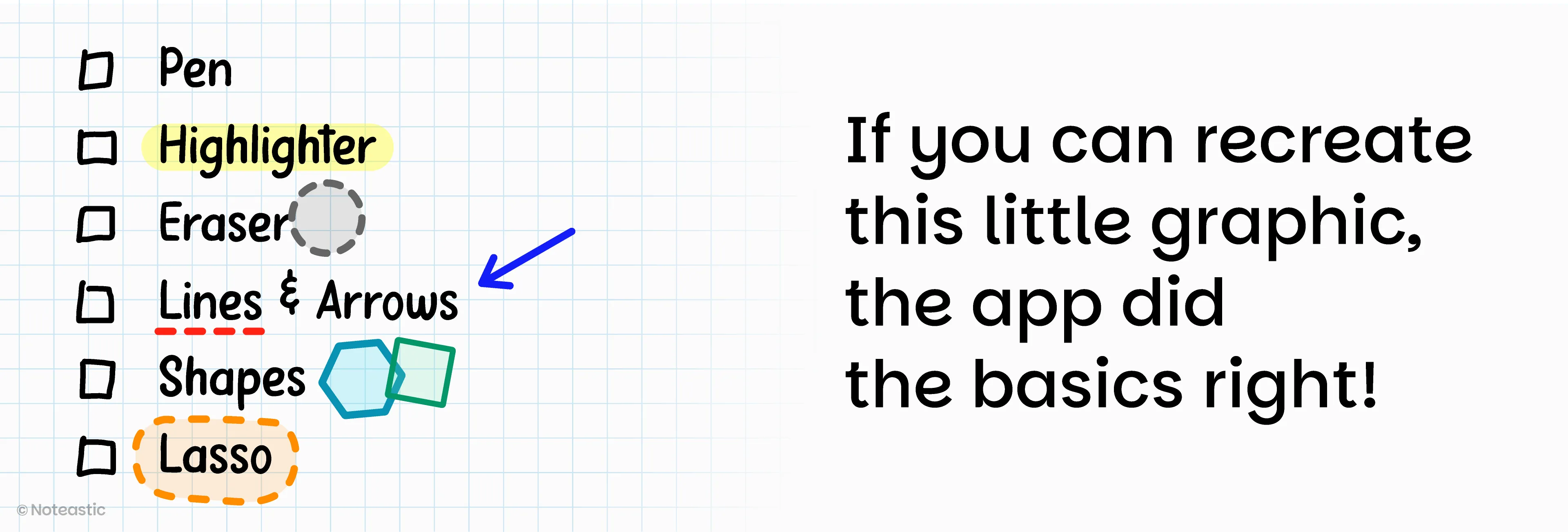
These tools have to work seamlessly. Be picky when you test different applications. You will spend a lot of time in your note-taking app, so you shouldn’t make any compromises with these basic functionalities. And even if you are convinced you won’t use some of these tools, I can promise you that you will need them at some point. Also, your note-taking behavior will change from what you are used to on a piece of paper, just BECAUSE additional tools make things like drawing shapes and straight lines easier. The frustration of realizing you chose an under-equipped application after countless notes and entries is something I want to spare you.
Another important aspect I would like you to be mindful of is whether you can freely choose colors and thicknesses for all these tools. We work on a digital canvas to escape the limitations of pen and paper. One of the limitations of a real pen is its fixed thickness and single color. Your stylus can be 100 pens in one, and the application you choose should leverage that. So look out for settings that let you add and edit colors, as well as a slider for changing stroke thickness instead of presets.
Canvas Size And Format
There are many applications that only offer infinite canvases to work on, but I would be very cautious with this false freedom. Infinite canvases create an abundance of space, but this boundless freedom can also erode structure and order. They are good for brainstorming, but the opposite is true for writing structured summaries or lecture notes. In these cases, you need page bounds to force your brain to digest and compress the information you write on your canvas, because they foster learning and are cognitively challenging.
I would ALWAYS opt for an application that uses pages over infinite canvases. Infinite canvases make good add-ons, but should not be your sole option to write on. Also, think about working with PDFs or exporting your notes. PDFs are page-based, and in order to display them correctly and make use of them, you need a page-based application. Also, your notes can only be reasonably exported to a PDF if they are separated into pages. I doubt you want to send your colleagues a single gigantic page of notes when sharing them. Keep this in mind when browsing for applications.
Note Editing
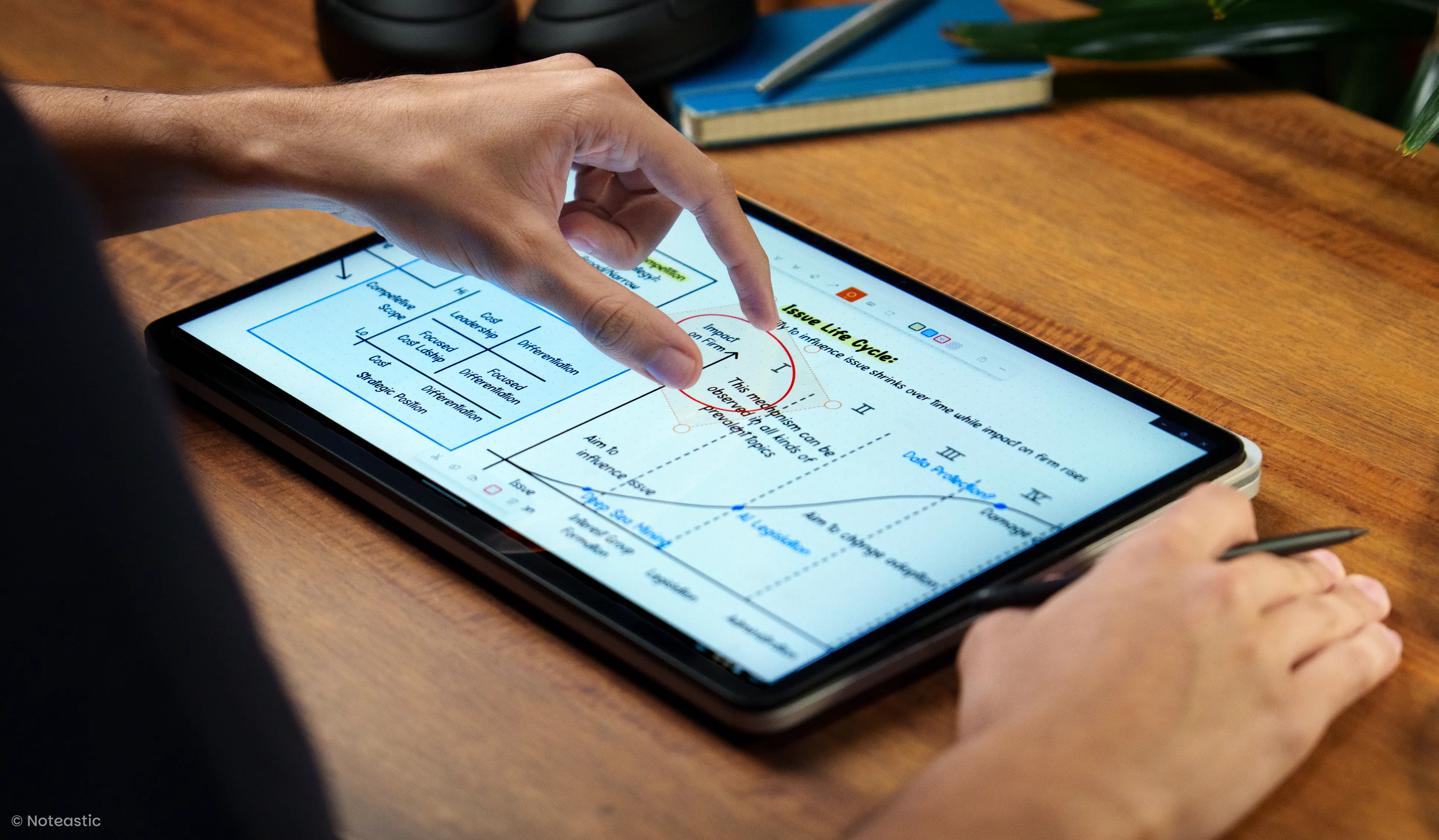
As outlined in one of the first paragraphs of this guide, the ability to edit what you have drawn is one of the most important aspects of digital handwritten notes. It elevates the process of taking notes from a rigid, linear process to a dynamically evolving, creational one. This is the real reason why digital handwriting is superior to analogue handwriting. The app you choose must foster this freedom and make it intuitively and quickly accessible to you.
You should be able to select and transform anything you ever put on a canvas. This includes moving your notes around, changing their size, giving them another color, and being able to copy and duplicate them. Yet, and I want to press this again, it’s not only important that these features exist, but that they are easily accessible. You should be able to select and instantly be able to transform your notes with the use of one or two fingers. Selecting any kind of drawn object, like ink strokes, shapes, or lines, you should be given the ability to assign any given color to them. This enables you to change the appearance of your notes at all times in order to better project what is going on in your head on the digital canvas. When this is implemented well, it feels like you are working in a fluent and intuitive environment. When this is implemented lacklustre, you are missing one of the biggest advantages of digital handwritten note-taking.
The best way to test your app in this aspect is quite simple: just play around! If you can do whatever you want with whatever you drew on the canvas and don’t feel limited by any means, you found a good note-taking application!
The Library
Until now, we have only looked at the experience on the canvas, but it is equally important how the app handles your notes in terms of notebook organization, accessibility, and safety. You will be amassing considerable amounts of text on your handwritten note-taking journey. If you can’t find your notes anymore, they lose their value.
The application you are using should feature a dedicated page to organize all your notebooks - a library. A library is no rocket science, but it must have one thing to be workable. If your app doesn’t let you create folders, you will sooner or later drown in your notes. Folders are fundamental for structuring your notebooks by topic and are a simple necessity. You should be able to create folders and move stuff in and out of them arbitrarily.
Also, a search function is advisable. Sometimes you simply forget where you put a certain notebook, and being able to find it by searching for its name is a simple yet relevant feature. I regard the other features a library consists of as given. These include notebook and folder names, easy navigation, sorting modes, and color tags.
Design - The Missing Link
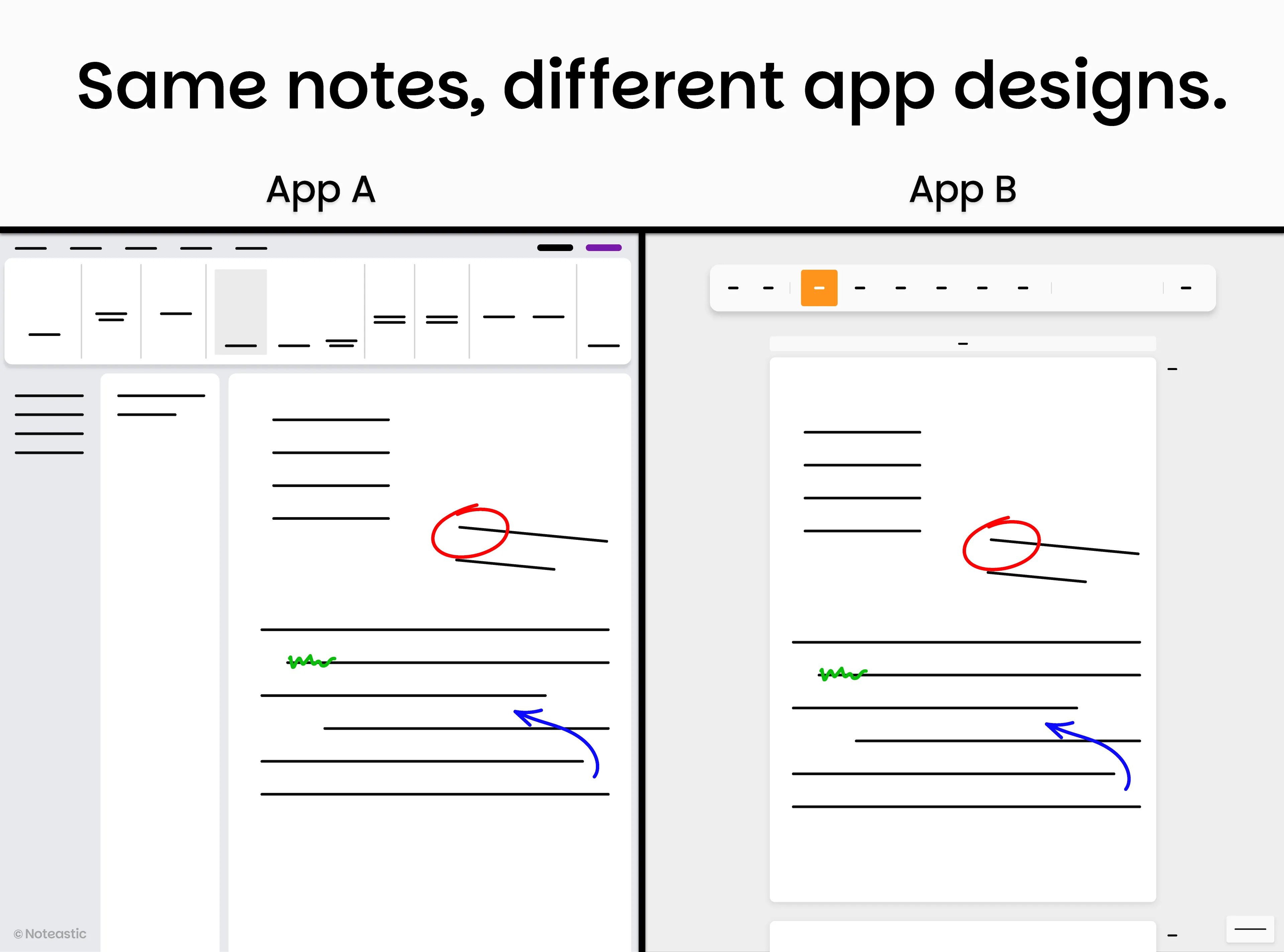
When all these boxes are checked off, there is still one thing missing, and you can feel and see it from the very first interaction with an app. Its design. An application is not only about the quantity of features, but more importantly, about whether features are accessible and usable in order to help you achieve your task. Deciding whether a design is good or bad is up to you, but I want to ensure you are aware of how your app’s design influences your note-taking.
It is just like on your real-world work desk. When it is a mess, and you can’t find the information or tools that you need, it holds you back. When your tools are sorted and you know where they are without even looking, you become a productivity machine. The same applies to software applications and sets apart good ones from bad ones. An app designer always has to balance giving you the tools you need as accessibly as possible while not obstructing or even cluttering your screen space. This is not to be underestimated, and if you feel an app doesn’t suit you or is too chaotic, don’t go for it. In the end, a note-taking application must be a space where you can focus. It should be aesthetic, tidy, and clean.
Closing Remarks
Even this guide is not complete. There are still some topics missing; however, I think you are now equipped with a good basis to make an informed decision over your hardware setup and software application for handwritten note-taking on Windows.
And don’t forget: Your notes are valuable pieces of text. The tasks you want to accomplish with your notes are important. Otherwise, you wouldn’t have ended up reading this blog. Don’t settle for mediocre solutions; search for the device and, especially, the app that really suits you. I am sure you will find it, and wish you an exciting note-taking journey for your studies or your professional career!
-Lukas
Co-Founder and CEO of Noteastic
References
-
Mueller, P. A., & Oppenheimer, D. M. (2014). The pen is mightier than the keyboard: Advantages of longhand over laptop note taking. Psychological Science, 25(6), 1159–1168. https://doi.org/10.1177/0956797614524581 ↩
-
Kenny, R., & Schroeder, E. E. (1994). The integration of learning strategies in interactive multimedia instruction. Proceedings of Selected Research and Development Presentations at the 1994 National Convention of the Association for Educational Communications and Technology. ERIC Document ED373770. https://files.eric.ed.gov/fulltext/ED373770.pdf ↩
-
Osugi, K., Ihara, A. S., Nakajima, K., Kake, A., Ishimaru, K., Yokota, Y., & Naruse, Y. (2021). Advantage of handwriting over typing on learning words: Evidence from an N400 event-related potential index. Frontiers in Human Neuroscience, 15, 679191. https://pmc.ncbi.nlm.nih.gov/articles/PMC8222525/ ↩
-
Project Encephalon. (2021). Hand and pen: A match made in heaven. https://www.projectencephalon.org/post/hand-and-pen-a-match-made-in-heaven ↩
-
Van der Weel, F. R., & Van der Meer, A. L. H. (2024). Handwriting but not typewriting leads to widespread brain connectivity: A high-density EEG study with implications for the classroom. Frontiers in Psychology, 14, 1219945. https://doi.org/10.3389/fpsyg.2023.1219945 ↩